Funkcje
Workspaces
Every project, client or department gets its own space: its own tasks, chats, files and people. Nobody sees anyone else's business, and you switch context with one click in the left-hand column.
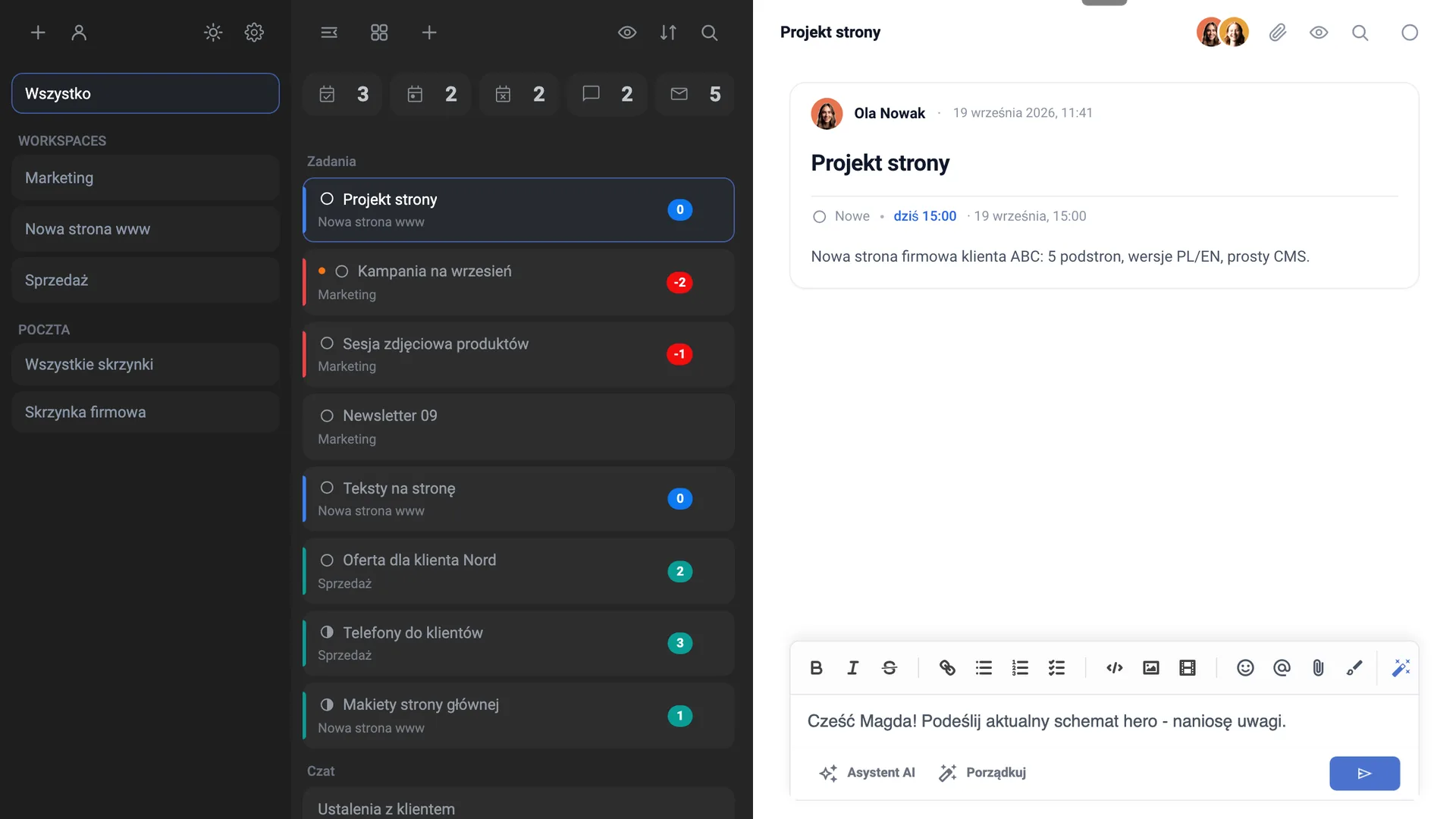
An email client-style layout
Three columns, a familiar layout, zero new habits to learn. If someone can use an email inbox, they can use Task Manager - and if they get lost, they just ask the Assistant in plain language.
Tasks
Subject, description, priority, due date, people responsible. You can drop a screenshot, a code block or a hand-drawn sketch into the description - the drawing lands in the task's files straight away too. Colours keep track of deadlines for you: red means overdue, blue means due today, green means on time.
Chats and Messages
Team conversation in the same window as the work - no jumping to a separate messaging app. @ mentions, reactions, attachments and a full history that doesn't disappear after three months like on Slack's free plan.
Board
All your Workspaces side by side, column after column, Trello-style. You can see at a glance where things are on fire and what's waiting - without opening anything.
Calendar
One place for everything with a due date: tasks, events, reminders from the Assistant, scheduled sends and team leave. At last you know whether anyone's actually in on Friday.
Notes
Agreements, checklists, instructions, things to remember. Keep them to yourself or share them with chosen team members and arrange them in folders. In the Pro variant, those same folders also hold files, so everything about one project stays in one place.
Search
One field, one typed word - and results from tasks, chats and messages all at once. You don't need to remember where it was.
Notification Centre
A discreet "island" at the edge of the screen: new messages, mentions, emails, status changes, reminders. When you have nothing unread, it tucks itself away to a thin line. Important things also reach you by email.
Mobile app
Task Manager on iPhone, iPad and Android, installed from your company's address - no App Store, no Google Play. The same tasks and chats as on your computer, your own home screen icon and notifications even when the app is closed.
AI Assistant
You talk to the app in plain language: "create a task for Friday", "show me what's overdue", "summarise this thread". It knows your tasks, permissions and user manual, so it answers about your company, not in generalities.
AI Agent
Multi-step tasks it handles from start to finish - it checks, creates, describes, attaches files and reports back. This isn't a conversation about work any more, it's work.
Your model, your key
You choose the provider: OpenAI, Google Gemini, Anthropic Claude or xAI Grok. You pay them directly for your queries, with no middleman's mark-up - and you can change your mind at any time.
Mail (Pro)
A full shared inbox inside the app: receive, reply, run threads. Gather attachments from a whole conversation into a folder with one click, and tidy up a long thread - keep the original, smooth it out, summarise it, or switch on Expert mode, which rewrites the content to be professional and to the point and adds an AI comment under every message.
Files (Pro)
A shared company drive with folders, sharing and a recycle bin. Every task and chat gets its own folder automatically, so nothing sits "somewhere on Mark's desktop".
Automations (Pro)
A rule in three steps: when something happens → if condition → then act. AI can evaluate the condition ("is this a complaint?"), and the action can write a note, create a task or save attachments. The simplest way is to tell the Assistant in plain language what should happen - it puts the rest together itself.
Company Knowledge (Pro)
The program builds its own knowledge base from your company's tasks, chats, notes and files. The Assistant answers from it, not from the internet, even when you don't point it to any source. If something isn't in your materials, it says plainly that it doesn't know.
n8n Integration (Pro)
For those who want more: webhooks and API keys let you connect Task Manager with the rest of your company's tools. Everyone else never has to know it's there.
Users and Roles
A global admin sees everything, a user only what they've been given access to - and permissions are set separately in each Workspace. Simple, no three-screen permissions matrix.
Absence and Leave
Leave, sick days and trips visible in the team calendar. When you assign a task, you can see straight away that someone will be out for a week - instead of finding out from an out-of-office reply.
Activity History
Your private work log: what got created, what changed, what you worked on and for how long. Private means private - it's there for you and for the Assistant to know the context, not for your boss to check up on you.
Open Space
You close tasks and hit deadlines - your character earns points, and the office gets a leaderboard. It happens by itself, with no extra work involved. It's fun and motivation, not staff appraisal.
Google Calendar
Two-way sync: meetings from Google show up in Task Manager, and the ones you add in Task Manager appear in Google right away. You can connect several accounts at once - work and personal - and only you see your own.
Conversation Export
You can save a single message, email or note as a PDF, Word or TXT file, and the AI Assistant can compile a thread into a PDF, Word, Excel, CSV or HTML document. Handy when you need to attach something to a proposal, a case or project documentation.
One-click updates
You install the new version from Settings. Usually without FTP, without a third party, without "please send us server access".







 This image was created with the help of artificial intelligence.